
Connect a tablet to the Internet
Check the tablet’s connectivity, background transfers and genuine offline access.
Follow the method ↓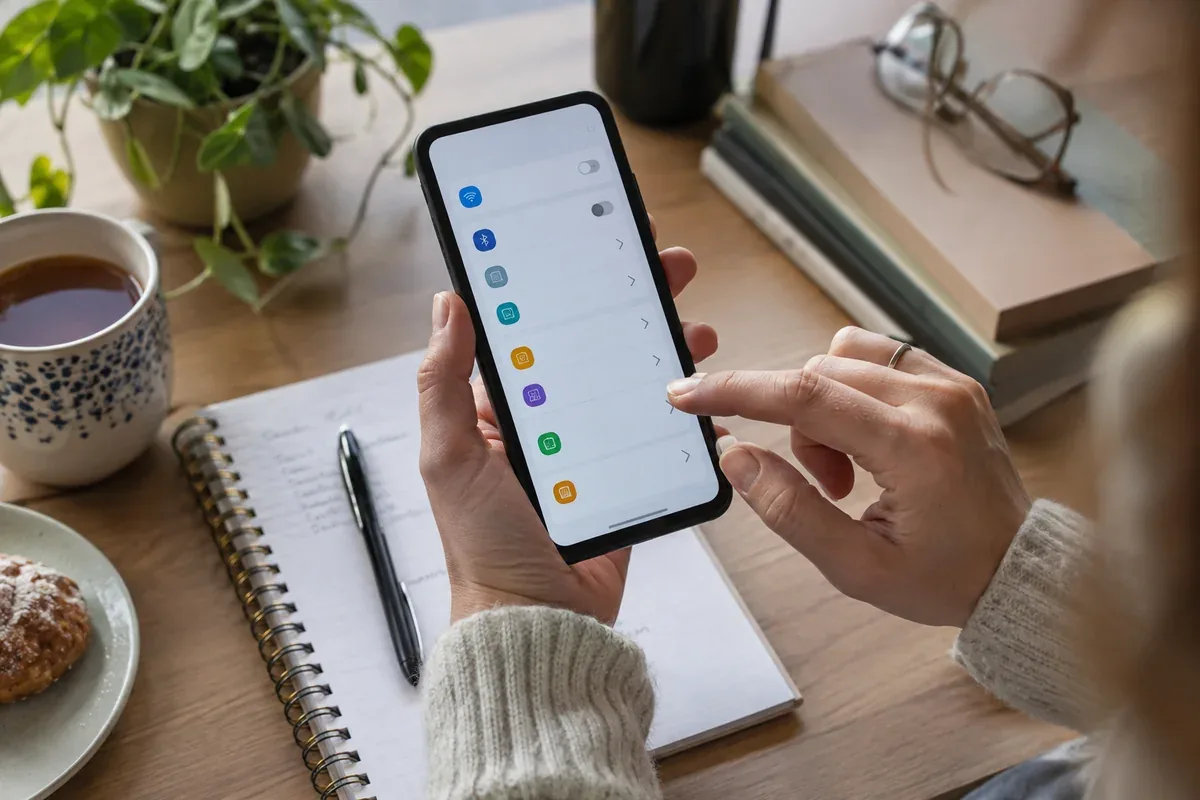
The answer in 30 seconds
A Wi-Fi-only tablet and a cellular model have different options away from home. A document visible in an app is not necessarily downloaded.
Identify the model’s connection capabilities, use a recognised network and test the documents you will need offline before travelling.
Examples to adapt
Check whether it was actually downloaded rather than just listed.
A compatible phone hotspot may be an option; check allowance and battery use first.
Follow the method
- 1Identify the model
Check whether it supports SIM or eSIM connectivity or relies on Wi-Fi. This determines the available travel options.
- 2Join the intended network
Verify the network name and follow its connection instructions. Do not reuse an important password in an unfamiliar public portal.
- 3Control background transfers
Decide whether backups, updates and downloads may use mobile or metered connections. Review app-specific controls where available.
- 4Prepare offline work
Download the necessary files, then open them before the trip. Test without a network rather than trusting a visible link.
- 5Diagnose before resetting
Compare a browser page, another network and another device. Back up data and isolate the cause before a major reset.
A checklist to keep
Use these checks to record what you found. The grid supports a decision; it does not make one for you.
| Check | What to examine | Action |
|---|---|---|
| Model | Wi-Fi or cellular capability | Read the specification |
| Network | Intended access point | Verify the name |
| Transfers | Metered background activity | Set suitable controls |
| Offline | Files actually downloaded | Test without a network |
Free, no sign-up. UTF-8 text with semicolon-separated columns.
What to check
Read hotspot and roaming conditions.
A network lock icon alone does not identify its owner.
Avoid a factory reset as the first test.
Common questions
Can every tablet use mobile data directly?
Check the exact model; Wi-Fi-only devices lack that direct connection.
How do I confirm offline access?
Open the needed files with connectivity disabled before leaving.
Sources and documentation
Documentation consulted on . Examples are illustrative; interfaces and results may change.