
Open the Google homepage
Distinguish the Google website, your browser start page, a new tab and the default search engine.
Follow the method ↓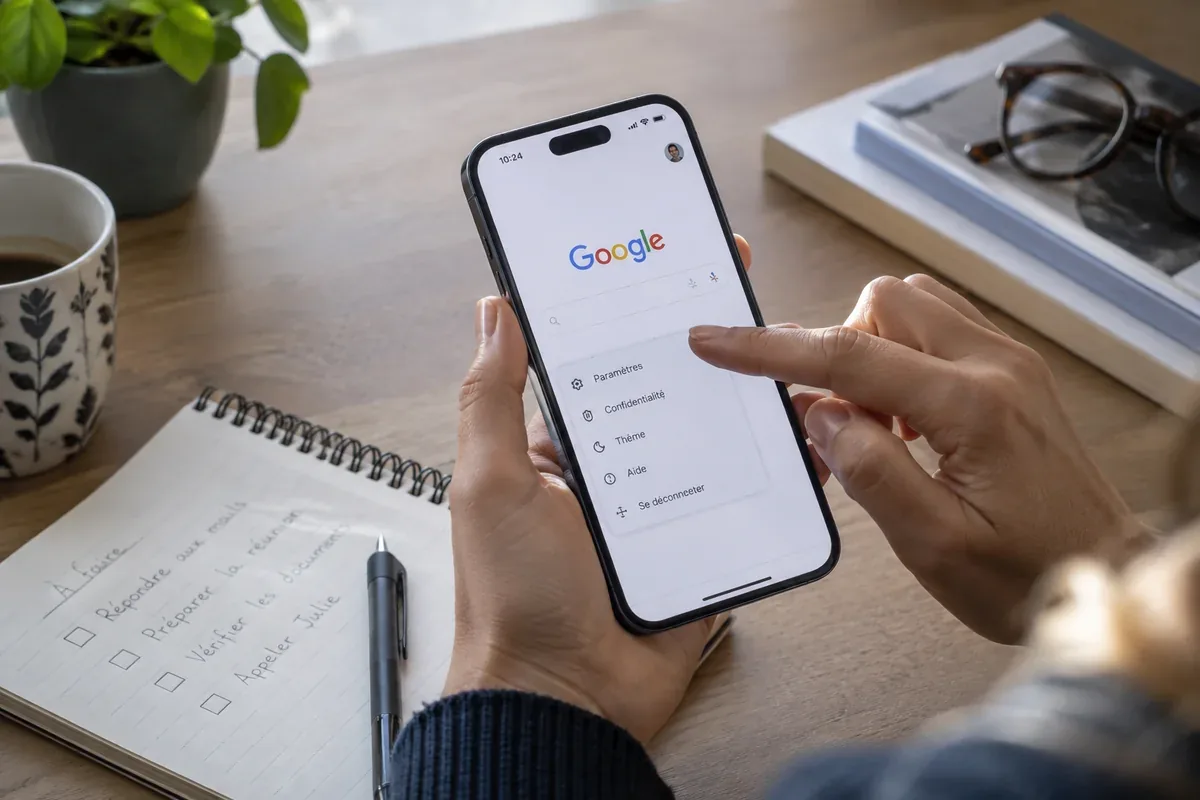
The answer in 30 seconds
Several settings can make Google appear when a browser opens. They serve different purposes, so identify the action you want before changing a setting.
Enter google.com in the address bar to visit Google. Changing the start page and changing the search engine are separate browser choices.
Examples to adapt
Check the startup or home-page configuration before changing the search engine.
A managed device may enforce a policy. Ask the organisation responsible instead of installing a tool to override it.
Follow the method
- 1Open the website directly
Type the address in the browser address bar, then check the final domain. An advertisement offering to install a homepage is unnecessary for this visit.
- 2Name the setting you want
Do you want Google when the browser starts, when a new tab opens, or when you search from the address bar? Write down just one goal.
- 3Find the browser setting
Use the browser’s official help for startup pages or search engines. Commands differ across desktop and mobile versions.
- 4Check the result
Close and reopen the browser for a startup change, or try a harmless query for a search-engine change. If a setting keeps reverting, inspect extensions or organisation policies.
A checklist to keep
Use these checks to record what you found. The grid supports a decision; it does not make one for you.
| Check | What to examine | Action |
|---|---|---|
| Website | Final domain | Open the address directly |
| Startup | Page shown after reopening | Change startup settings |
| Address-bar search | Engine receiving a query | Change the default engine |
| Unexpected reset | Extensions or management notice | Inspect the cause |
Free, no sign-up. UTF-8 text with semicolon-separated columns.
What to check
Identify the browser and device first.
Avoid homepage installers from unknown publishers.
Keep a record of the original setting.
Common questions
Must I install Google to use the site?
No. An up-to-date browser can open the Google website directly.
Why does a new tab still look different?
New-tab behaviour can have its own setting and may differ from the start page.
Sources and documentation
Documentation consulted on . Examples are illustrative; interfaces and results may change.
Reference record for this resource
Identify the publisher, official destination and practical checks before using the service.
Read the Google record →