
Share a file with the right access
Choose recipients and permissions, test the link and know how to remove access later.
Follow the method ↓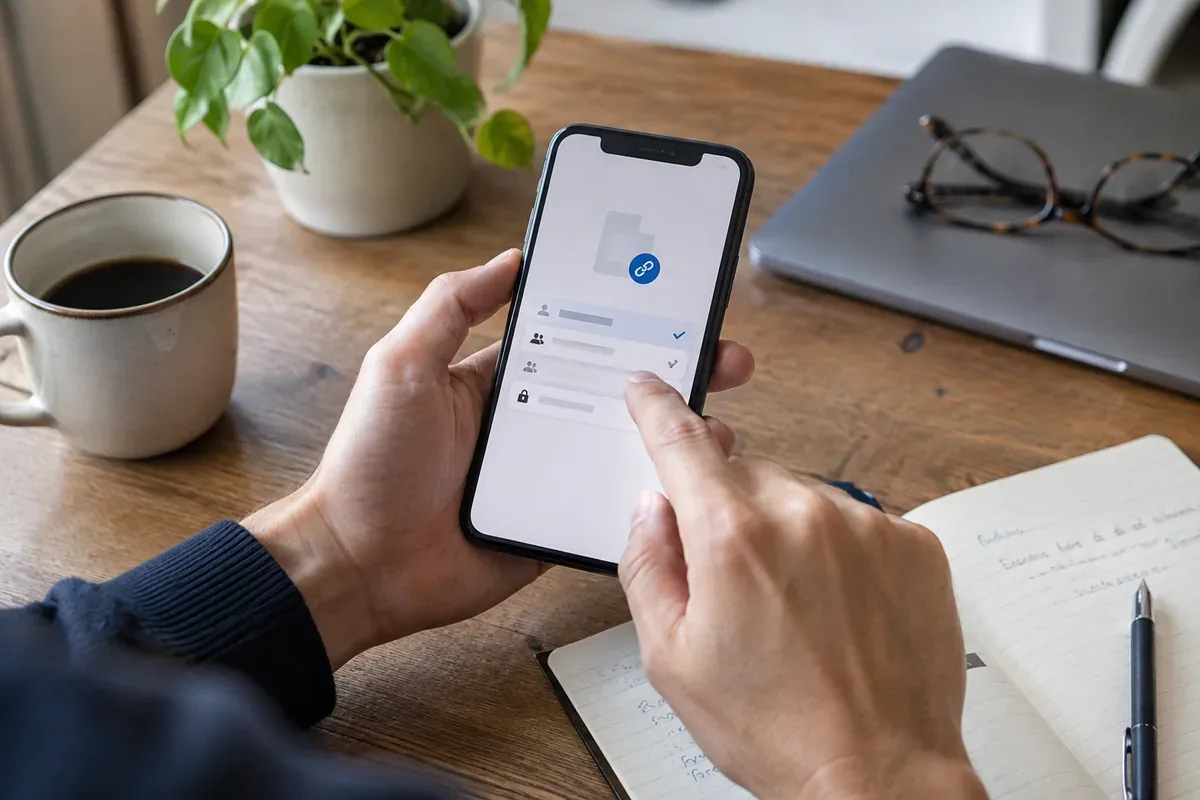
The answer in 30 seconds
A sharing link is convenient, but a viewer, commenter and editor can do different things. Folder permissions and organisation settings may also affect the result.
Decide who needs the file and what they must do with it, give the narrowest suitable permission, test with the intended recipient and note where access can be changed or revoked.
Examples to adapt
Give a named colleague comment access if feedback is needed but editing the original is not.
Check whether anyone with the link may view it and whether personal details are present.
Review old collaborators and public links, then remove access that is no longer needed.
Follow the method
- 1Check the file
Remove details the recipient should not receive and verify you selected the current version.
- 2Choose recipients
Prefer named people or a defined group when a public link is unnecessary.
- 3Set a role
Give view, comment or edit access according to the work the recipient must perform.
- 4Test access
Open the link from the recipient's perspective or ask them to confirm it works without exposing more than intended.
- 5Review and revoke
Find the sharing settings again after the task and remove unneeded people or broad link access.
A checklist to keep
Use these checks to record what you found. The grid supports a decision; it does not make one for you.
| Check | What to examine | Action |
|---|---|---|
| File | Correct version and no unnecessary details | Check |
| Audience | Named people, group or anyone with link | Choose |
| Role | View, comment or edit | Limit |
| Test | Can the intended person open it? | Confirm |
| Review | Where will access be removed? | Record |
Free, no sign-up. UTF-8 text with semicolon-separated columns.
What to check
Sharing a folder can grant access to files inside it.
An editor may be able to change more than the document text, depending on the service's settings.
A link sent privately can still be forwarded if access is set to anyone with the link.
Common questions
Should everyone get edit access?
No. Use the least powerful role that lets each person complete the task.
Does deleting the message revoke access?
Usually the file's sharing settings control access. Review or remove permission there rather than assuming the message is the only copy of the link.
Sources and documentation
Documentation consulted on . Examples are illustrative; interfaces and results may change.